
AI voice agents for your 8x8 phone system





How IrisAgent works with 8x8
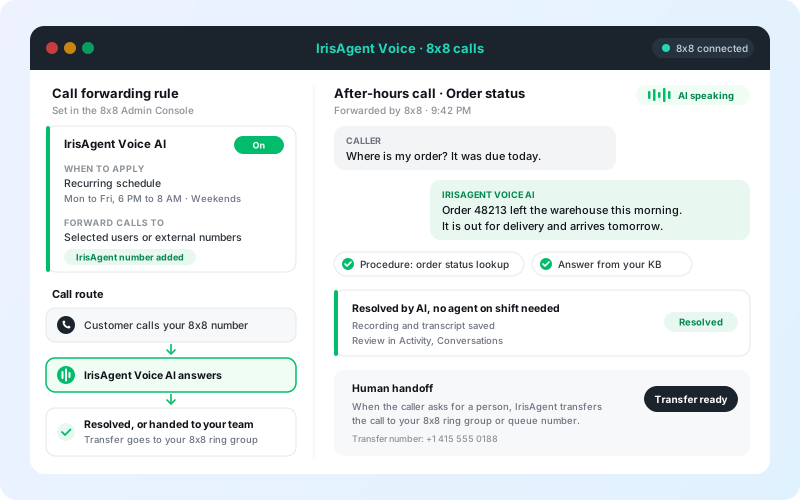
8x8 keeps running your phone system. A call forwarding rule on your 8x8 extension sends calls to an IrisAgent number, and IrisAgent Voice AI answers them. When a caller needs a person, IrisAgent transfers the call back to your team.
Stays the same in 8x8
- Your 8x8 numbers and extensions
- Your 8x8 account, licenses, and users
- Ring groups, queues, and voicemail for your team
- Which calls forward, set by you in Call forwarding rules
What IrisAgent adds
- A voice agent that answers from your knowledge base and past tickets
- Procedures for lookups, refund checks, and ticket creation
- Human handoff to the 8x8 number you choose
- Recordings and transcripts in Activity, Conversations
By Palak Dalal Bhatia, CEO & Co-founder, IrisAgent · Last updated November 9, 2026
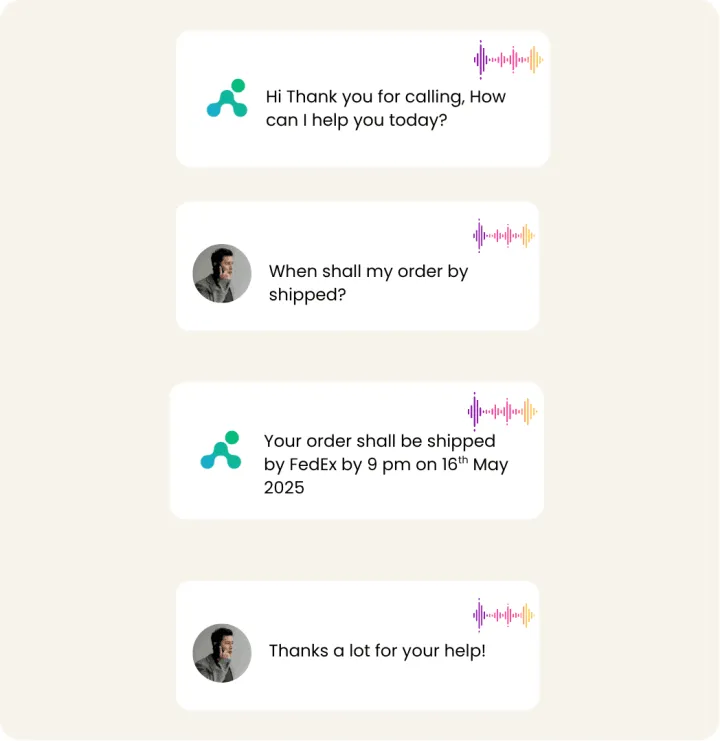
Answer 8x8 calls after hours
Want every call covered? Turn on the Forward all calls rule instead and let IrisAgent answer first.
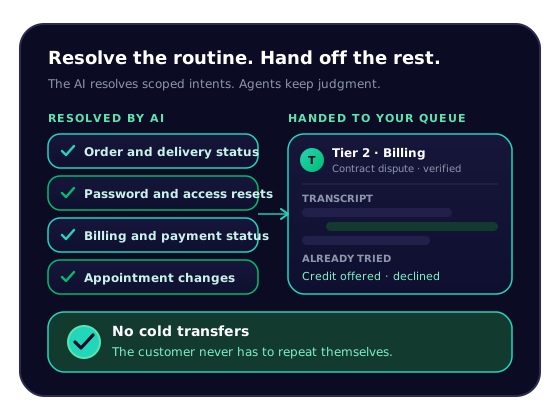
Transfer to your team when a person is needed
The transfer is immediate. If no one picks up, the call follows your 8x8 routing, such as voicemail.
Review every call
Add AutoQA to score calls against rules you write in plain English, for the AI and your agents in one dashboard.

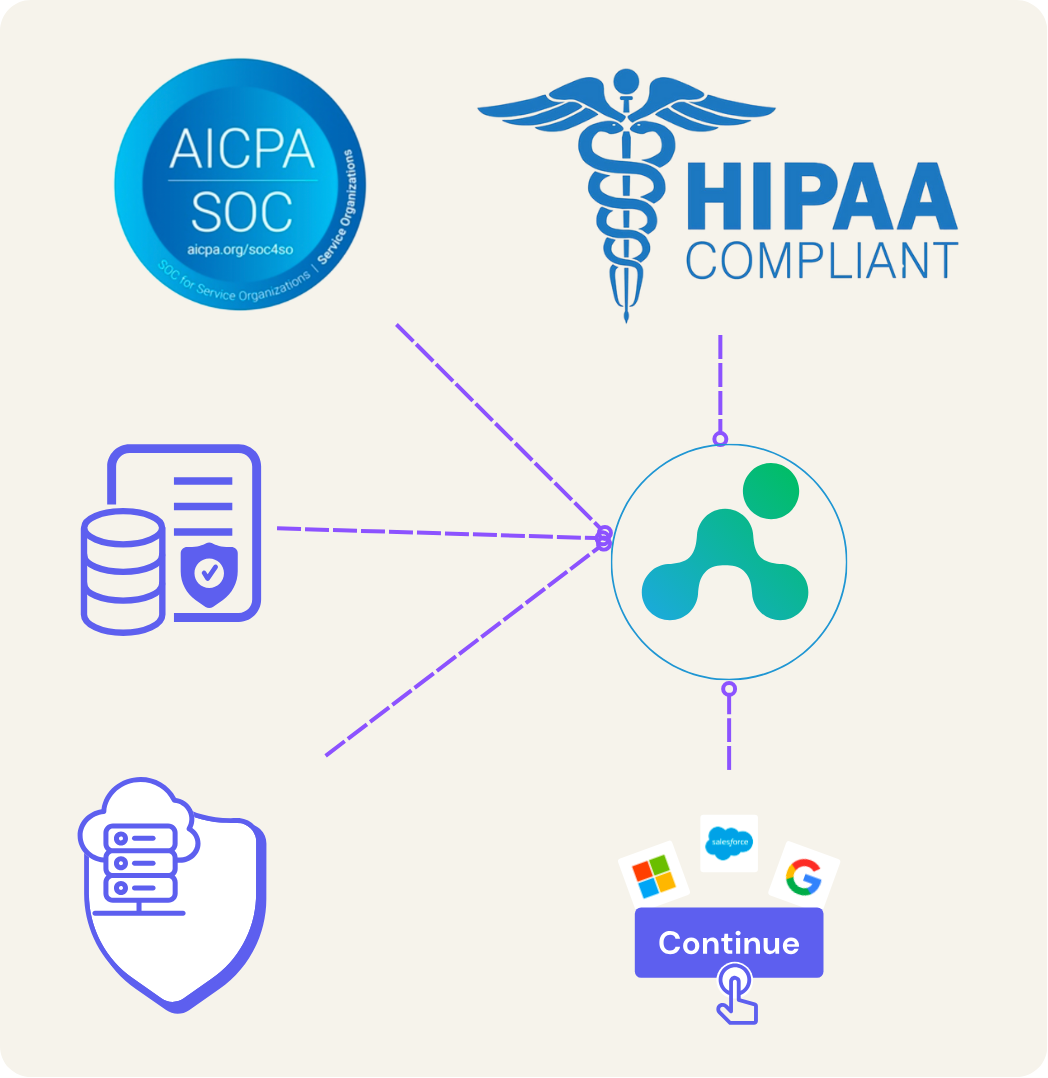
Grounded answers, secure by default
SOC 2 Type II and HIPAA controls, with PII redacted before storage. See security.
Set up 8x8 with IrisAgent
The IrisAgent team turns on Voice AI and provisions your number. Then you add one forwarding rule in 8x8.
Before you start
- An 8x8 account with admin access to the 8x8 Admin Console
- An 8x8 phone number or extension that receives customer calls
- A license assigned to that extension (call forwarding rules need one)
- An IrisAgent account, connected to your ticketing platform or using your public website as the knowledge source
- The external phone number provided by the IrisAgent team
Forward calls to IrisAgent
In the 8x8 Admin Console.
- Sign in to the 8x8 Admin Console and go to Users.
- Click Edit (pencil icon) next to the extension, then select Call forwarding rules.
- Click Edit next to the Forward all calls rule to enable it.
- Select Selected Users or External Numbers.
- Enter the IrisAgent phone number with the full country code (for example, +1 for US numbers) and click Add to the List.
- Set how many seconds to ring before moving on, and choose Sequentially or Simultaneously.
- Click Save for the rule, then Save again for the user profile.
Optional: forward only at certain times
Use Voice AI only during set hours, for example after hours. Create a custom rule instead of step 1.
- In Call forwarding rules, click Add New Rule and name it (for example, "IrisAgent Voice AI").
- Under When to Apply this Rule, select Recurring Schedule and set the days and times.
- Under Forward Calls to, select Selected Users or External Numbers, enter the IrisAgent number, and click Add to the List.
- Save the rule, then save the user profile.
Turn on human handoff
In IrisAgent Voice AI settings.
- In Voice AI settings, open the Call transfer tab.
- Turn on Human handoff.
- Enter the Transfer phone number in international format, such as an 8x8 ring group or a direct agent number.
- Optional: enter an Extension (up to 10 digits), dialed after the destination answers.
- Enter the Message before transfer. Default: "I'll connect you with a human agent now."
- Click Save transfer settings. Never use a number that forwards back to IrisAgent, or the call will loop.
Test it
Place a real phone call. A browser test does not check the phone route.
- Call your number from an external phone (not an 8x8 line).
- Confirm you hear the IrisAgent Voice AI greeting.
- Ask a few common questions and check the answers.
- Trigger your handoff condition (for example, ask for a person) and confirm the destination rings.
- Review the call in Activity > Conversations.
Full guide: Voice AI on 8x8 · Voice AI overview
Flexible pricing
Pick the model that matches your call volume. Your 8x8 plan stays with 8x8.
USAGE-BASED
$400
per month
From 2,000 included minutes, scaling to custom plans for higher volume.
RESOLUTION-BASED
$0.99 to $2
per resolved call
Your rate sits in this range based on monthly volume. Nothing charged when the call goes to a human. No per-seat fee.
Any questions?
We got you.

Related: Voice AI · AI call center · AI answering service · All telephony integrations · 8x8 setup guide